'LIKE' US

Your support means a lot to us. So if you like our posts and wish to keep reading articles on Control Your Mac, we request you to follow us on our Facebook and Twitter pages.

Showing posts with label iMac. Show all posts

Video: How To Make Your Mac Display Black & White (Steps Included)

Infographic: how to make your Mac black & white (Click to enlarge)
Ever wanted a Black & White Mac? Probably not, but it never hurts to know how. And it makes for a great prank!

Here's how:

1. Head into System Preferences 〉 Accessibility 〉 Display
2. Check the box marked 'Use Grayscale'.


Subscribe and visit www.controlyourmac.com for more helpful apps, reviews, tips & tricks. Follow us on Facebook: http://facebook.com/controlyourmac


Video: How to Set / Change a Password on a Mac


Ever wondered how to set a password on your Mac to keep it from prying eyes ? Or maybe you just want to change / remove that pesky password you have right now. Watch this short video to learn how.


Steps:

1. Open System Preferences
2. Click on Users & Groups (May be called 'Accounts' in older versions of Mac OS X)
3. Select the desired user and click 'Change Password'
4. Enter your old password (Leave blank if there was no password)
5. Enter your new password and verify (Leave blank if you want to remove your password altogether)
6. Enter a password hint to help you remember
7. Click 'Change Password'

OS X Mavericks Makes Sending Messages Easier

Messages button in notification center on OS X Mavericks

If you are an iMessage user, you may already know that you can send and receive iMessages on your Mac. And now, with OS X Mavericks, it's even easier. Mavericks now includes an iMessage button in the Notification Center which allows you to quickly send an iMessage from your Mac without having to open the Messages application or take out your phone.

The Mavericks Notification Center also notifies you when the track changes in iTunes and provides you with a handy skip button right on the notification. Other changes in the Notification Center include website alerts, replying straight from the notification bubble and a cleaner look.

Stay tuned for more updates on OS X Mavericks, iOS 7 and other Apple news !

Follow us on Twitter: twitter.com/controlyourmac
and on Facebook: facebook.com/controlyourmac

Possibility of an iMac Touch ?


Recently, I discovered that patentlyapple.com had acquired what seems to be a patent filed by Apple for an iMac Touch ( Actual name unknown ). Needless to say, if Apple has actually developed it, they are still a long long way from releasing it. However I'll elaborate on what I seem to understand from this design.
Apparently, the key to it all is the base, or as the header of the image says "Flex base". Essentially when the screen is in the upright position as shown in the main center image, it will function as a normal iMac - on Mac OS X ( Or whatever the latest version of Mac is by then ). But when its screen is facing up such as in the figure on the top-left corner of the image, it will function as an iOS Device. Needless to say, this seems like an extremely convenient idea but for the obvious disadvantages such as which keyboard will be used and if its a touch keyboard won't it be extremely inconvenient.


Another appealing possibility, perhaps most likely too, is that Apple will develop an entirely new Operating System meant for such devices.
Of course, there's still a lot of thought that needs to be put into this, but I'm hoping that Apple's already doing that.

Five Things to Do After Buying a Mac

When you buy a Mac, you probably want to make sure you get your money's worth from your Mac. More importantly, you want to use it to its fullest. So here's the ten essential things to do after you buy your Mac (Don't worry, these won't make your wallet any lighter) -


1. The First would naturally be to transfer all your content from your old computer to your new Mac. I personally just transfer my stuff to a hard drive and then to the new Mac, but you can also use Mac's Migration Assistant. (Located in Applications --> Utilities)

Format an External Hard Drive for Mac and Windows


The question most Mac Users always have on their mind is "How can I format my External Hard Drive for Windows?". There could be any number of reasons for wanting to format an external Hard drive -

  • Too much junk 
  • Need space 
  • Not working
  • Not compatible with both windows and mac

Or perhaps simply because you're reorganizing the file system on your Mac. In any case, there's a correct method to do it such that it gives you the best amount of space possible and is compatible with windows as well as mac.


If you have important data on your hard drive make sure you back it up before formatting your hard drive.

So to start, open up Disk Utility which is located in Applications --> Utilities.  Or Launchpad --> Utilities
Now, that you have Disk Utility opened up, from the left hand side column select your external hard drive. It will be orange colored. Make sure you select the main Hard drive and not a partition. For example, in the screenshot below, you would select "500.08GB WD My Passport" and not "SHIV WD" Now, click on the partition tab ( as shown selected below )

MAKE SURE YOU DO NOT SELECT YOUR COMPUTER'S HARD DRIVE. ( IN GREY )

Change the partition layout to as many partitions you want in your formatted Hard drive. If you're not sure, select 1 partition.
Change the Name as per your liking.
Change format to Mac OS Extended ( Journaled ).
Leave the size as it is.
And finally, click apply. Your Hard drive should now be formatted for both Windows and Mac. 

Magic Mouse: How to Fix The Battery Issue


The Magic Mouse is truly one of Apple's better inventions, albeit not too well known. A multi-touch mouse is in my mind, simply genius. The sheer brilliance of the idea aside, the bluetooth mouse provides a sensational experience. Put it this way, 30 per cent of the pleasure of using a Mac is contributed by the hardware. ( Magic mouse contributes the majority of that number )


The seamless, multitouch surface of the mouse, also functions as the button and is capable of detecting intuitively a swipe, a tap, a pinch, a double tap, a click, a scroll or even a resting hand and also how many fingers were used to do it. In addition to this, if put through the right software it can also double as a trackpad. However there is a tiny flaw. Battery.
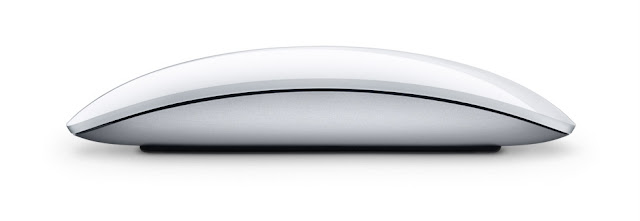


It drains enormous amounts of battery. Within a few weeks of average consumption your "long lasting" battery will fall down to 10 per cent or so. The obvious solution ( aside from the tedious task of frequent battery replacement ) would be the heavily advertised Battery charger. Although not a bad idea, it is essentially, a hyped up pack of six rechargeable batteries and a charger. What I am about to tell you however is simply a trick, to change the "few weeks" of battery like to a few months and if done regularly enough maybe even half a year.


Switch off the mouse at night. ( Or when not in use ). You may not believe me now but switching the mouse off at night or otherwise actually somehow seems to increase your mouse battery. Not much, but it does by 5-10 per cent each time. Even if you don't believe what I am saying, surely turning your magic mouse battery off can't do any harm. And in any case, you'll see it for yourself.


To turn it off, push the little switch behind the mouse downwards. However, since this is only a temporary solution, buying a battery charger isn't a bad idea.

How to Run Rosetta PowerPC Apps on Lion


If you haven't updated to Lion yet, don't be in a rush. If you have, this might come as a bit of a shock but Apple has removed Rosetta PowerPC. Which means most of your old applications and games may not work. These apps will now have a white slashed circle on it thus officially declared by Apple to be dead.  Another way to check is by right clicking on the app in Finder and clicking on "get-info" or pressing Command-I after selecting the icon in Finder. In the kind section it will say either "Application ( Intel, Universal or PowerPC ). The first two will work with Lion the last will not.

Chances are, if the application was old ( which it probably was ), developers won't bother making a new Intel version of the same app. So if you upgrade to Lion you'll probably have to live without it or you'll have to find alternative applications. Dilemma ? Lion's cool new features versus the Compatibility in Snow Leopard. Why not keep both ?

So how to keep Lion and Snow Leopard.

Simple: Upgrade to Lion and Install Snow Leopard on Parallels Desktop or VMware Fusion
Parallels Dekstop and VMware Fusion are crossover applications which allow you to run Windows ( or any other Operating System ) on your Mac without having to reboot your Mac. 

Mac Application: LockScreen 2


Everyone tends to be paranoid about their computer's security. Even more so when its a Mac. So naturally there are those who have tried to make a nice profit out of it, telling you that your Mac's security isn't good enough, or sometimes trying to sell you onto the "security with better looks" aspect. Of course, its not all true. There were even some individuals and companies with the cheek to sell you onto security software that didn't lock your Mac, but just made it appear so.

Nevertheless, security software can come in Handy, sometimes when you might want to stay logged in and yet keep your Mac locked. Or perhaps you simply want better wallpapers and functions on your logout screen. Or maybe even for a cool new way to unlock your screen.
So if you, for any reason, want an app which does the above, I recommend LockScreen 2
What's better you might ask.

Fancy wallpapers ? Optional.
Better Security ? Not necessarily.

What LockScreen 2 does, in fact have is the ability to "Swipe to unlock". Yes that's right. iOS like slide / swipe to unlock. What to swipe ? Why, your Keyboard of course ! Or mouse or trackpad. An imitation of something that has been with iOS since the very beginning,  perhaps, but a great one at that.

Its not one of those Must-Have apps. Nor is it an app that you would be very eager to get especially at $1.99 ( discounted price ) but its a nice, fun app nevertheless. (With a genius for a developer, I might add)

Color Up Your Mac


When you get bored of the traditional blue everything on your Mac, why not switch to red, or green, or orange or pink or any one of the millions of colors available on your Mac. So you're probably wondering which colossally sized application you have to download. Sadly, none. You go to System Preferences --> General ( in personal ) --> Change the Highlight Color and you're done !

Label your Files and Folders


There are some of us, who like to keep our files and folders organized by labeling and color coding the, be it the virtual ones ( on computers ) or even the physical one. Mac provides such an option to color code them which they call "labelling". So to do so, simply select an file or folder, right click on it and choose the color you want in the 'label' section. And thats it. Done.

Launchpad in Mac OS X Lion

Launchpad on Mac

Launchpad is another one of Apple's favorite new features in Lion, It's basically a new quick way to launch applications conveniently straight from your Desktop.
To view launchpad, Simply click on the Launchpad icon in the dock (the same as the one to the left) It may take upto a minute or so the first time you launch it. However the next time, It'll launch with amazing speed.
Those of you who've used an iOS Device previously, will immediately recognize the similarity between this and the gridded applications launching system ( Springboard ) on iPad, iPhone or iPod Touch.
Click and hold on an application to move it around and click the cross on it to uninstall ( delete ) it. Drop it into another app to create a folder.
Apple. Coincidentally, I had designed an application with the same name and purpose too. Strange.

Launchpad Folders
Bonus tip: Click on the name of the Folder to rename ( for example, in this case, you would click on "Developer" to rename it.
Related - Similarities between iOS and Lion )

Mission Control in Lion - What is it and How to Use it


You've probably heard of a new feature that Apple keeps bragging about in their new OS - Mission control.

So what is it ?

Mission Control on Mac OS X Lion provides you with a new way to monitior all open Spaces, Full screen Applications, Windows of Applications, Dashboard and more in a beautifully displayed screen.

What's it good for ?

Mac OS X Lion is Out


Apple just released their newest, much awaited operating system - Mac OS X Lion along with a New Macbook Air and a New Mac Mini. What's more Lion, with over 250 new features in a single update is available for a mere $29.99 for all your Macs as opposed to previous operating system updates which were priced at $129.99 for a single Mac. 

Stacks on Mac

Fan in the form of a stack


What are stacks on Mac ?
Stacks on Mac provide an easy way to access folders right from your Dock. These folders are positioned to the right of your Dock seperator. You can add stacks to the Dock by simply dragging a folder here. You can view these stacks in the form of a fan, grid, list or let Mac decide.

Update your Mac and it's Applications


Did you know that your Mac can be updated frequently to a newer bugless version in minutes ? Your apps require updates too to fix bugs. To update, just click on the Apple icon in the top right corner of your screen and click on software update. Select your updates and click Install.

Know Each Detail of Your Mac


Curious about your mac ? Want to see each and every detail about it with a couple of simple clicks ? Click on the Apple button ( top left of your screen ), hold down the alt/option button on your keyboard and "About this Mac" will change to System Profiler. Click on System Profiler.

The Mac Tip Series 9 - System Preferences


System preferences on Mac OS X is an application with all your general settings. In other words, it's like "Control panel" on Windows. To go to System Preferences you can -

1. Search for it in spotlight search ( top right corner of screen )
2. Click on the Apple button in the menubar ( top left corner of screen )
3. Click on it in the dock.

Mac OS X - Remove Duplicates in iTunes


Duplicates in iTunes ? Remove them in three simple steps.

1. Open iTunes.
2. Click on File in the menubar and then on Display Duplicates.
3. Delete the duplicates

CYM Did You Know - Twitter Menubar

The twitter application has a menubar icon on the right hand side of your menubar ( top of the screen ) from where you can directly go to the Timeline, Mentions, Messages or Post a new tweet. Also when the twitter app is active, you can right-click on any text in any application and there will be an option saying "tweet". Click that to tweet the selected text.