'LIKE' US

Your support means a lot to us. So if you like our posts and wish to keep reading articles on Control Your Mac, we request you to follow us on our Facebook and Twitter pages.

Showing posts with label cym. Show all posts

Left Handed Mouse on Mac ?


Left handed ? Trouble using the mouse with your right ? No problem. Just go to System Preferences --> Mouse and change the "Secondary click" option from right to left. Piece of cake.


Create a Keyboard Shortcut on Mac

On OS X, you can create your own keyboard shortcut for any command which is on the menu. And by that, I mean literally on the menu. Simply open System preferences --> Keyboard --> Keyboard Shortcuts, choose the Application name, type the command and done.

iPhone 5 - Features and Release Date ( Rumoured, Expected )


The iPhone. A revolution in technology ? Maybe you disagree ( Feel free to voice your opinion below ) Either way, one of the more frequently searched terms on google is about the new iPhone 5 with more than 6 million searches in a month. So here's an article I don't think you'll regret spending 5 minutes of your time on. However, you might regret the many hours of your time you'll soon be spending pondering what Apple's next miracle will be like.


Facts


- It will run on iOS 5.
- It will leave you awestruck.
- That's all we know.

Rumours ( There's a lot of these )


- It may have a Curved glass display ( Highly likely )
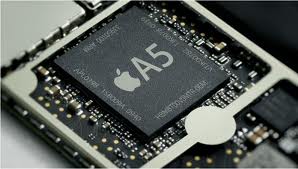
- A5 Dual core Processor ( Highly likely )
- 8 MP Camera with LED Flash ( Highly likely )
- Factory Unlocked ( Highly likely )
- Voice Recognition ( Likely )
- It may be thinner because of the Curved glass display ( Likely )
- Glasses free 3D ( Not very Likely )

Curved Glass Display on iPhone 5 ( Rumoured, Expected )


One of the strongest rumors about the iPhone 5 is that it will have a curved glass display. This rumour is floating around based on an article in a taiwanese newspaper saying that Apple had recently ordered glass cutting machines with the capability to carve glass. The iPod nano is one of the few devices with a curved screen display. However another possibility is that Apple plans to make the back of it's device with curved screen display. ( Another one of their attempts to make the iPhone thinner )

iOS 5 Release Date ( Expected, Rumoured )

When is iOS 5 Releasing ? Apple says "this fall" but nothing more specific. However, judging by the fact that Apple tends to release its newest software along with their newest piece of Hardware, we suspect that it will be released it September along with iPhone 5 ( Assuming that's what it's called ). Our best Release Date prediction in September 7th, 2011 ( CNET Tech UK )

The iPad Tip Series 5 - Take a Screenshot


Take a snapshot of your entire iPad Screen. Simply press the Home Button and Sleep / Power Button simultaneously and it will get saved to your photos app in the album "Saved Photos"

The Mac Tip Series 7 - Get Information about a File / Folder


In Mac, you can get information such as File size, File Type, File Name, Folder Contents, Location on Mac, Date Created, Date Modified, Entension about any file / folder as well as other functions like locking the File / Folder, Making it Read only, etc.

So what's the long drawn complicated procedure for all this ?


Well, first you select the file and then press Command-I. Complicated, huh ? ( For the sarcasm impaired, you want to skip over that last part )

The Mac Tip Series 6 - Trash ( Recycle Bin )


Mac Switch #8 - Your Recycle Bin is now called the "Trash" and is to the extreme right of your Dock. To delete files, you can either right-click the file and click "Move to Trash" or you can simply drag it to the Trash icon in the Dock. Click on the trash icon to see what all is in it. Right-Click and then click empty to permenantly delete all the files in the trash. To eject an external Hard Drive, drag the HD from your Desktop to the trash can. It'll automatically change to an eject icon.

The Mac Tip Series 5 - Shut Down / Restart / Sleep


Mac Switch #5 - To Switch off your mac, click on the apple sign at the top left of your screen and click "Shut Down", "Restart", "Log Out", "Sleep". Or press Control-Eject To shutdown


The Mac Tip Series 4 - System Preferences


System Preferences

Mac Switch #4 - All or most of your general preferences are now managed by an application called "System Preferences". Click on the apple sign on the top left corner of your screen and click on "System Preferences".

The Mac Tip Series 3 - Applications


Mac Switch 4 - IMPORTANT Your Mac now runs on an application system (which, by the way, is not the formal term for it) which means that even when you click the cross button on a window (which is to the top-left corner of your screen), the application will usually stay open which can make your computer slow. To quit an application correctly, click on the name of that application in the menubar and click "quit application name". This is shown in the image below. Or simply press Command-Q

The Mac Tip Series 2 - Macintosh HD


My Computer --> Macintosh HD

Mac Switch #2 - Your "My Computer" folder is now called "Macintosh Hd and should be on your desktop.

The Mac Tip Series 1 - The Dock

The Dock
Your start menu is now your Dock. The Dock is, by default located at the bottom of your screen and looks something like the image below. Move your mouse over the applications in your dock to see the name. Single-Left Click to Open. On a notebook, just click the button once.

Safari Tip - Mail Contents of Webpage


Did you know that on Mac, not only can you mail a link of a webpage to someone but you can also mail the complete contents of that webpage. Simply go to File --> Mail Contents of this Page. Or simply press Command-I

Slow down Dashboard and Exposé Animations

Slow down Dashboard and Exposé animations by pressing

Shift-F3 ( Exposé )*
Shift-F4 ( Dashboard )**

*Exposé may be F9 on older macs.
**Dashboard may be F12 on older macs.

The iPad Tip Series 3 - Spotlight Search

Search the entire contents of your iPad using Spotlight Search. Place one finger on the screen, touch and drag the home screen towards the right to reveal the spotlight search.

The iPad Tip Series 2 - Multitasking on iOS


To multitask on iPad, simply double press the Home button and a bar will pop up from underneath reveal all the currently active applications. To switch to one, simply touch the app's icon. To close them touch and hold on any one and then touch the little red 'minus' button on any app. To close the bar simply tap anywhere else on the screen or press the home button again.

The iPad Tip Series 1 - Set a Passcode


To Set a Passcode on iPad, Go to Settings --> General --> Passcode Lock. On iPad, You can either have a 4-Digit Numeric Passcode or an Alphanumeric Password.

To set the former, toggle "simple passcode" to the "on" position.
To set the latter, toggle "simple passcode" to the "off" position.

Terminal - Make Hidden App Icons Transparent


To make your hidden app icons transparent as shown above, Open Terminal ( From Applications --> Utilities ) and type -

Mac OS X Lion - Air Drop


In all previous version of Mac, transfering files from one Mac to another was a more complicated process which involved setting up file sharing, connecting to the same network, finding the other Mac, authenticating the transfer and other tedious steps. In Mac OS X Lion, All you have to do is drag and drop it to a "drop spot" and Lion will automatically find all available computers in the network and you simply have to choose one. See the Lion release date.